
What MCP is and how it is used here
MCP (Model Context Protocol) is an open standard that lets an AI application use tools and data from another service. Here Pic on Site is the server and ChatGPT or Claude is the client. The steps follow the OpenAI and Anthropic documentation dated October 28, 2026; interfaces can change.
Tomorrow you have a site visit and want to know which photos exist of the second-floor suspended ceiling before deciding whether another shot is needed. You can ask the assistant to query the project and tell you which dates and photos exist. The connection is set up once; after that you pick the connector in each conversation.
Data you will copy
Add the server to your client with this data. You can copy it with the button or select the text by hand.
Name: Pic on Site
URL: https://piconsite-mcp-uoj4rmy5na-ew.a.run.app/mcp
Type: remote MCP server (Streamable HTTP)
Authentication: OAuth with a Pic on Site accountThe URL must include /mcp; it is the server endpoint, not the app address. For these web versions, don't paste a key or a token into the conversation; access is granted with OAuth.
Before you start
You need a Pic on Site account with access to the projects and photos you want to query, a client that supports MCP servers or custom connectors, and a browser for the consent step. In a company, an administrator may need to enable the feature or add the connector.
Availability depends on the account, the plan and the workspace policies. Menu names can vary by account, language and version.
Connect in ChatGPT web
The current OpenAI guide describes this flow:
- Open ChatGPT Plugins with the account you will use.
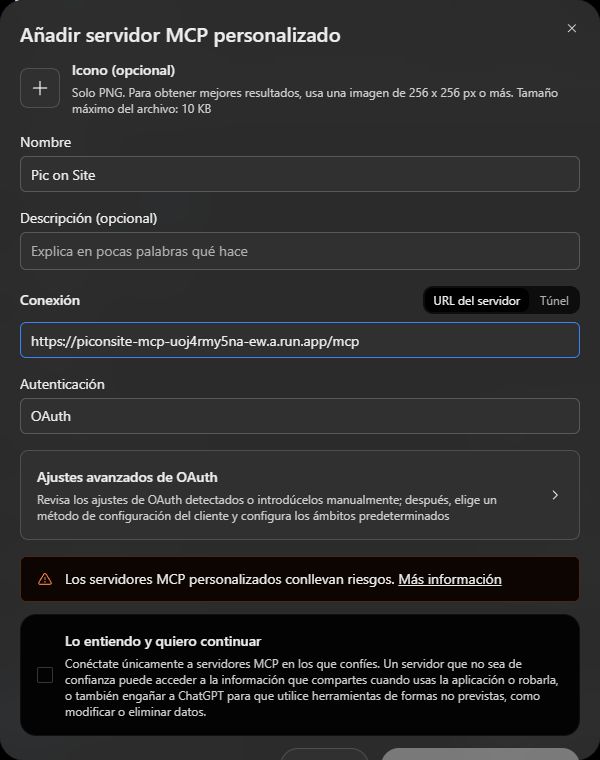
- Open Add — “Añadir” in the Spanish screenshot — and choose Add custom MCP server.
- Enter a name and a description: “Pic on Site” and “Query for projects and photos”.
- Paste the full URL, including the
/mcppath. - When it asks for authentication, complete the OAuth sign-in with Pic on Site. Don't paste passwords or tokens into the chat.
- Review the risk notice and confirm that you want to continue.
- Press Create as a plugin, review the detected tools and install or connect the plugin.
- Open a new conversation, type
@and select Pic on Site.
If the option to add a server doesn't appear, check with whoever administers the workspace: the account or its policies may restrict it.
Connect in Claude web
For an individual account, follow this flow from the Claude connectors guide:
- Open Customize → Connectors.
- Choose Add custom connector, enter “Pic on Site” and paste the server URL.
- Continue and check that the detected authentication is OAuth; choose to sign in now.
- If OAuth client appears, select Use Claude's published identity. If it asks for client identifiers you don't have, check the guide or support; don't invent values.
- Add the connector and complete the sign-in. If it stays pending, press the option to connect.
- In the conversation, open the
+button, go to connectors and enable Pic on Site.
In Team or Enterprise, the owner or a person with permissions must first enable the connector for the organization. After that, each member connects it with their account. The linked guide details the supported roles.
When authorizing, check the account and the permission
Before accepting, check which Pic on Site account appears. The browser may hold a different session from the app or the mobile. If it isn't the right one, switch to the correct account. Don't paste passwords, codes or tokens into the chat.
Querying photos and editing presentations are different permissions. To start, request read-only if the client lets you choose. If it doesn't let you limit the permissions, review what it requests before accepting. You don't need to ask the assistant to make changes to check that you can query your projects.
Run a test query
Open a new conversation, select the connector and ask for a read-only query:
Use Pic on Site to list my projects. Don't modify anything. Show me the projects and wait for me to pick one before querying its photos.
You should see the projects accessible to the authorized account. If the list is empty, don't conclude that the server is down: check the account, the access and whether the assistant called the tool. If it answered without querying, repeat starting with “Use Pic on Site”.
Then narrow it down to one project:
Use Pic on Site to query the “Sample Renovation” project [replace it with one of yours]. Tell me which photos exist between October 12 and 18, in which areas and on which dates, and cite the specific photos. Don't calculate progress percentages or claim compliance.
A useful answer builds on concrete photos and dates. Photos document what they show; on their own they don't prove compliance, causes or a contractual percentage. If the assistant infers more, ask it to separate observation from interpretation.
If something doesn't appear or fails
- I don't see the option to add a server or connector. It may depend on the account, the plan or the workspace policies. Check the official documentation of your client and, in an organization, ask whoever administers permissions.
- The client doesn't connect. Check that the URL is complete, with
https://and/mcp; a truncated URL causes errors. Check that your network doesn't block the domain. - It connects but I don't see projects. Check which account you authorized and whether it has access to the project. Ask for an explicit read query before changing the configuration.
- The tools don't activate. In ChatGPT, select the plugin with
@in a new conversation. In Claude, enable it with+→ Connectors. If you just installed it, open a new conversation. - I can't edit a presentation. That's expected if you authorized read-only. Editing requires the write permission and a new consent; changing the configuration isn't enough if the previous token was read-only.
- A 401 during a technical test without credentials. It's the expected authentication challenge, not an outage. The real connection is completed with OAuth.
Ask your assistant for help
If you would rather have ChatGPT, Codex or Claude move the work forward, copy this message with the button: it already includes the address of this guide and the server data. An assistant with access to the settings can prepare the connection; a chat without those tools will guide you. Sign-in and permissions require your intervention.
I want to connect my Pic on Site account to this client to query my construction projects and photos.

Read the instructions in the article: https://piconsite.com/en/connect-pic-on-site-with-chatgpt-and-claude

Server data:
- Name: Pic on Site
- URL: https://piconsite-mcp-uoj4rmy5na-ew.a.run.app/mcp
- Type: remote MCP server (Streamable HTTP)
- Authentication: OAuth with my Pic on Site account

Identify which client we are in and use your tools to move the setup forward. First check whether Pic on Site is already added. If you can edit local configuration, preserve the existing one and prepare only this connection, with read permission when there is a choice. If you don't have access to those settings, guide me step by step. Don't promise that a link installs the connector by itself.

I will sign in and grant the permissions; don't ask me for passwords or tokens in the chat. When the connection is available, verify it with a read-only query: list my projects and wait for me to pick one. Don't declare the connection complete without that query.The first URL is the article's; the second is the server's. Don't swap them: the client needs the server's and the assistant needs the article's context. If it can't open the link, ask it to use the data in the block and not to invent steps.
Appendix: Codex CLI
Codex is configured separately: adding it there doesn't configure ChatGPT web or Claude, and an open session may not pick it up until you restart it.
You can ask Codex to review its configuration and add this block if it doesn't exist, keeping the other servers:
[mcp_servers.piconsite]
url = "https://piconsite-mcp-uoj4rmy5na-ew.a.run.app/mcp"
scopes = ["piconsite:read"]
Then sign in and review the configuration:
codex mcp login piconsite --scopes piconsite:read
codex mcp list
The OpenAI documentation explains where the file is stored. The server appearing in the list confirms its configuration; check access with the earlier projects query.
Sources and references
- OpenAI. Connect and test your plugin: adding the custom MCP server, authentication, installation and use in ChatGPT web.
- OpenAI. Model Context Protocol (MCP): difference between ChatGPT web and local clients such as Codex; TOML configuration and CLI commands.
- Claude (Anthropic). Get started with custom connectors using remote MCP: adding the remote connector, OAuth authentication and per-conversation activation.
Sources consulted on October 28, 2026. These are provider-documented procedures: the availability of the options depends on your account, your plan and your workspace policies, and the connection is completed with your sign-in.
Start with a read-only query
The connection is verified with a successful read-only query, not by how the menu looks. Grant only the permissions you need.
If you would like to organize the archive first, read how to organize construction photos so they stay useful later or review construction photo progress tracking. To learn where the photos are stored and how access is controlled, see security and data.
Pic on Site, the visual memory of your site.